This article will teach you the basics of creating orders in DMRS.
This article is only applicable to requestors (Store Heads, Franchise Owners, Ecomm Operations)
TABLE OF CONTENTS
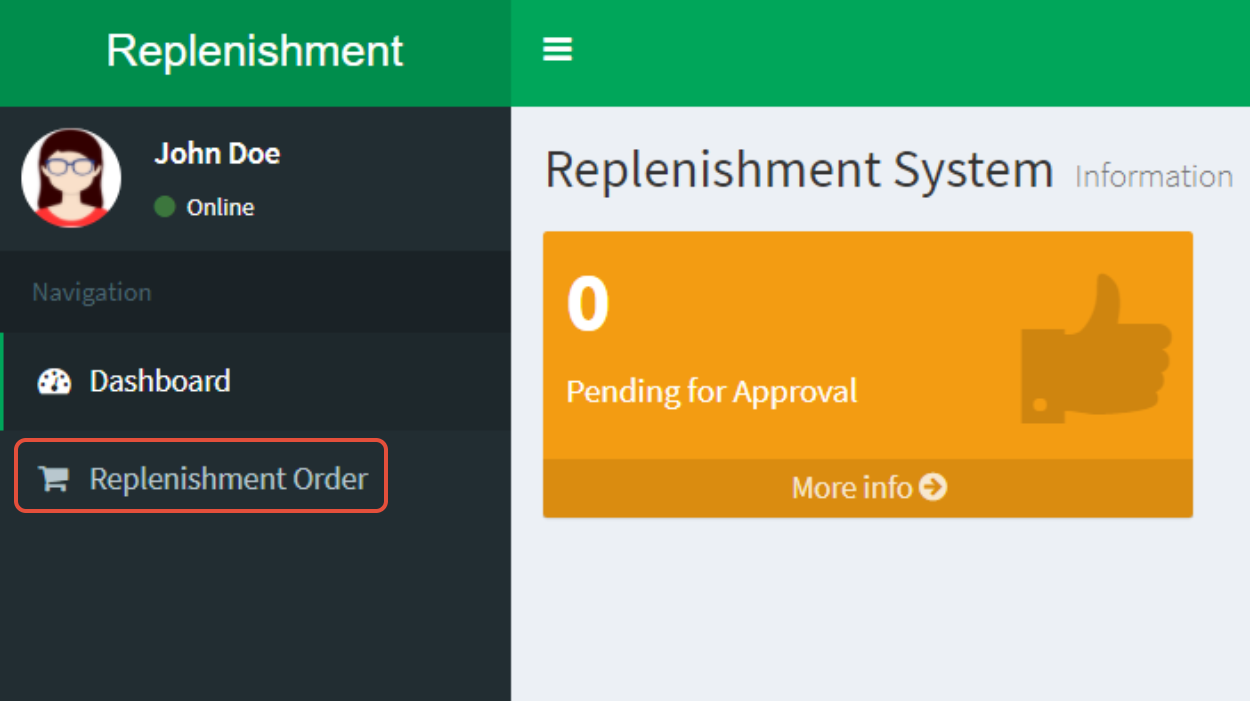
- Step 1: Click on Replenishment Order
- Step 2: Assess Your Sales, Inventory, and Unserved Orders
- Step 3: Click Create Orders
- Step 4: Use the template in your article
- Step 5: Input your Proposed Order Quantity and Store Inventory
- Step 6: Click on Send Order
Step 1: Click on Replenishment Order
Step 2: Assess Your Sales, Inventory, and Unserved Orders
- Download the summary of your unserved orders (See Screenshot)
- Download your POS Inventory (Good & Transit) and POS Sales
- Assess if you need to do additional replenishment orders
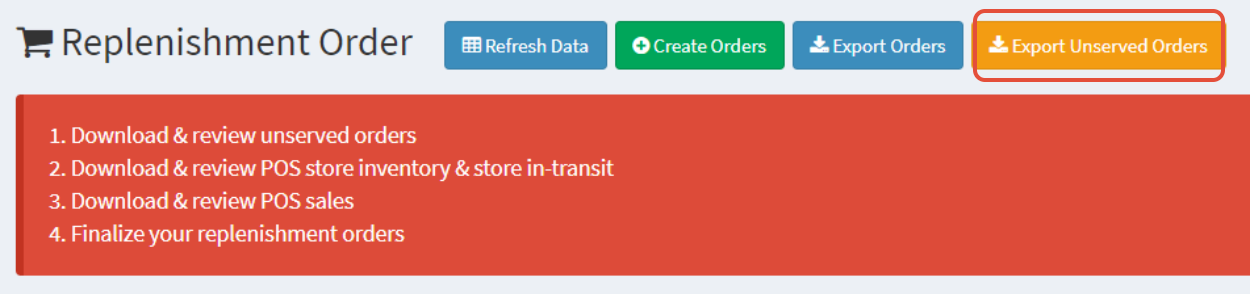
POS is a different system from DMRS. Please download the necessary files and make your assessment before proceeding to the next step
Step 3: Click Create Orders

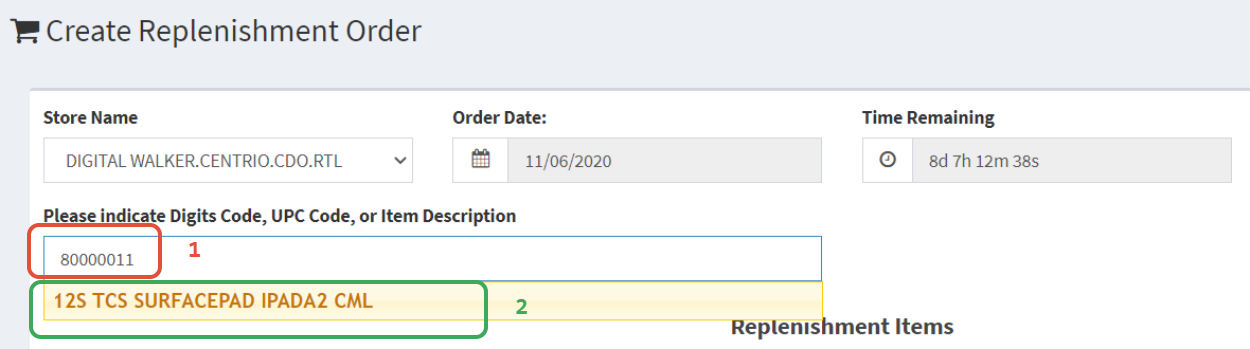
Step 4: Use the template in your article
- Enter the Digits Code of the item
- Click on the Item Description of the item to add it to your order
Step 5: Input your Proposed Order Quantity and Store Inventory

You may delete items by clicking on the trash icon
Step 6: Click on Send Order