
This article will teach users how to create blank orders. The purpose of this is to easily notify the approver that the store has assessed their sales, inventory, and unserved orders.
This article is only available to requestors
TABLE OF CONTENTS
Step 1: Click on Replenishment Order
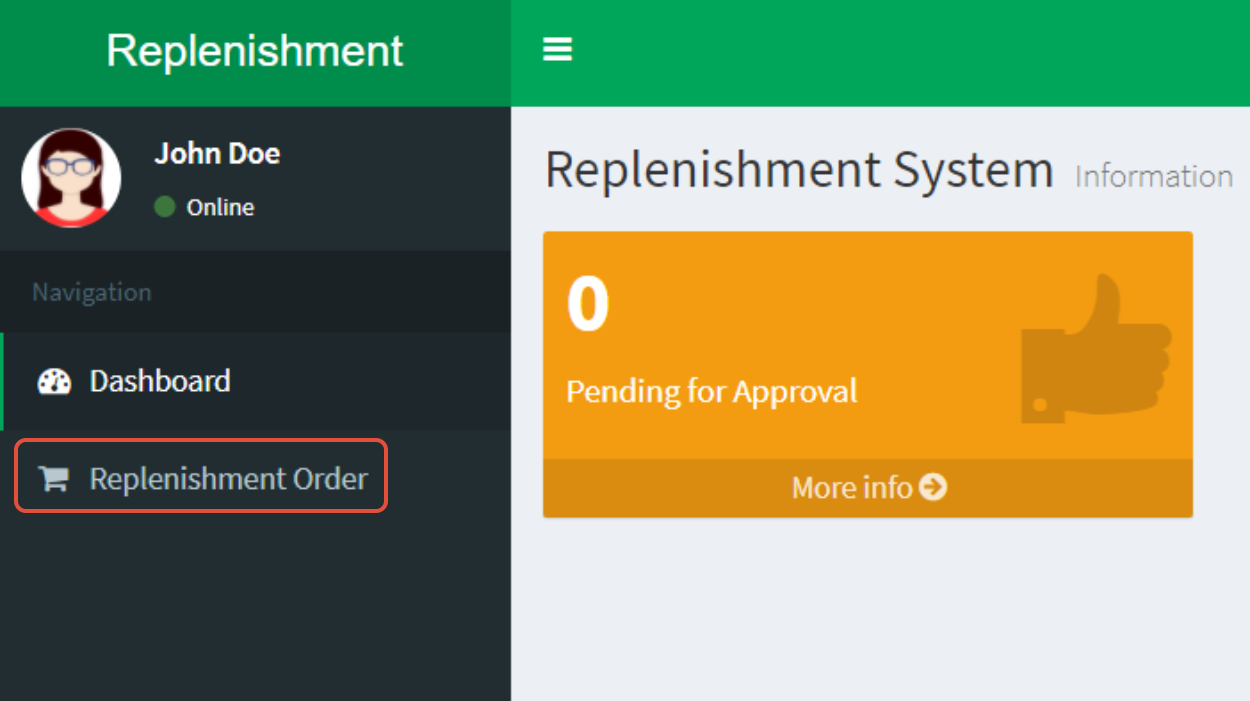
Step 2: Click Create Orders

Step 3: Click Send Blank Order
Please ensure that you have reviewed your sales, inventory, and unserved orders before sending a blank order
System will automatically create a blank order for you with zero quantity
Policy: DO NOT SEND both during the same cutoff period: (1) Replenishment Order (2) Blank Order