
This article will show you how to manually download mall admin sales in case there are problems.
This article is for Restaurant Front-End users (Cashier / OIC) that are experiencing syncing problems with mall admin sales
TABLE OF CONTENTS
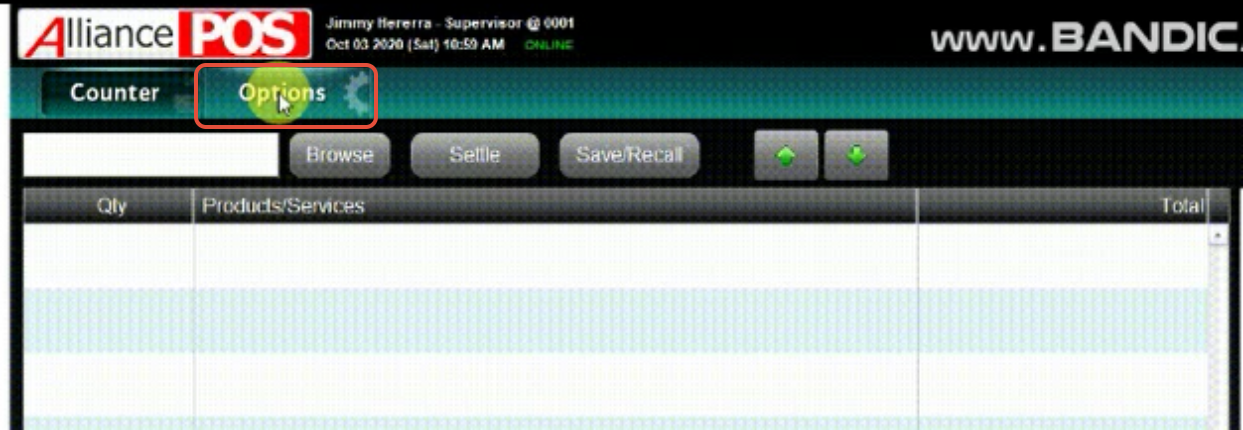
- Step 1: Click on Options on your POS Front-end
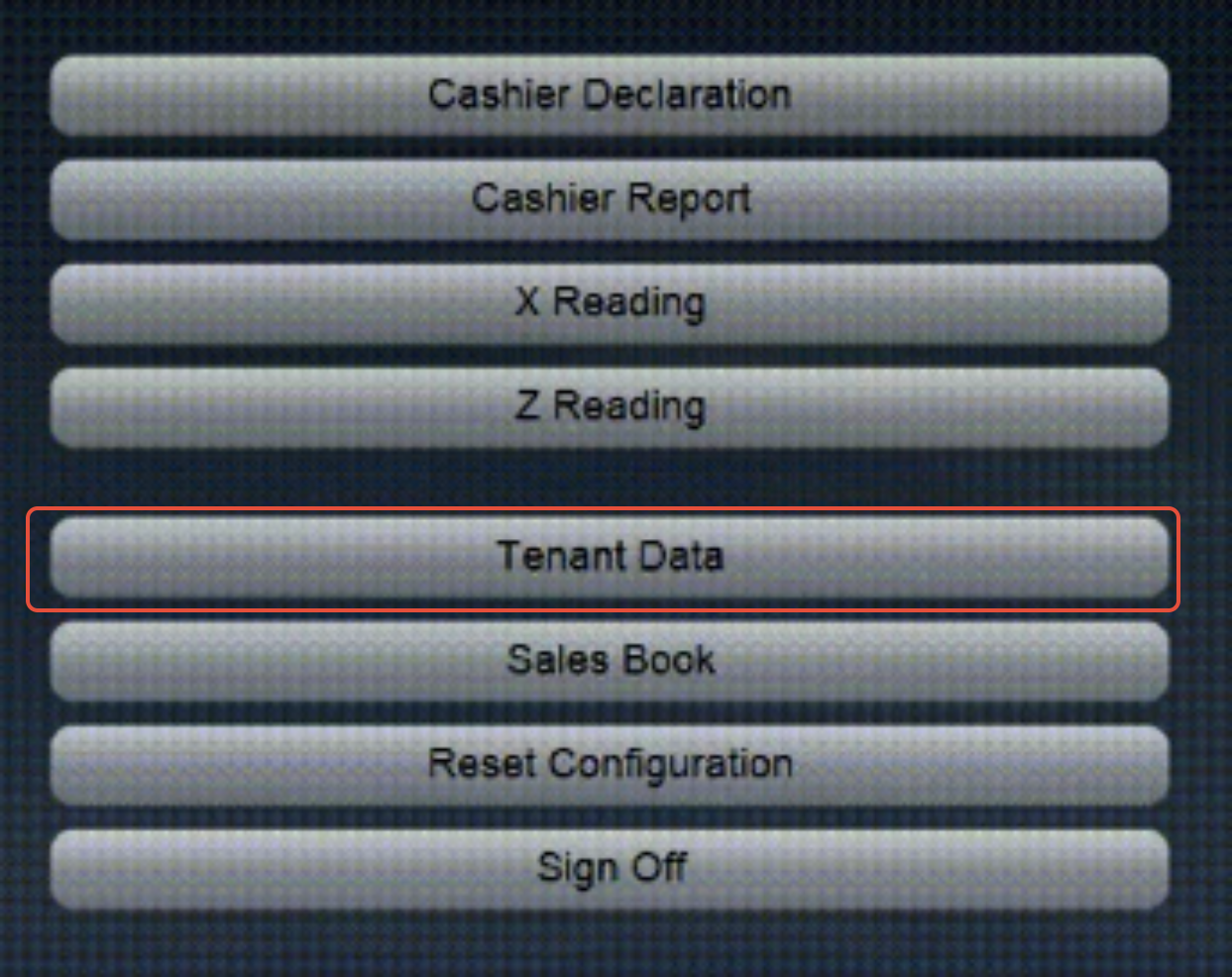
- Step 2: Click on Tenant Data
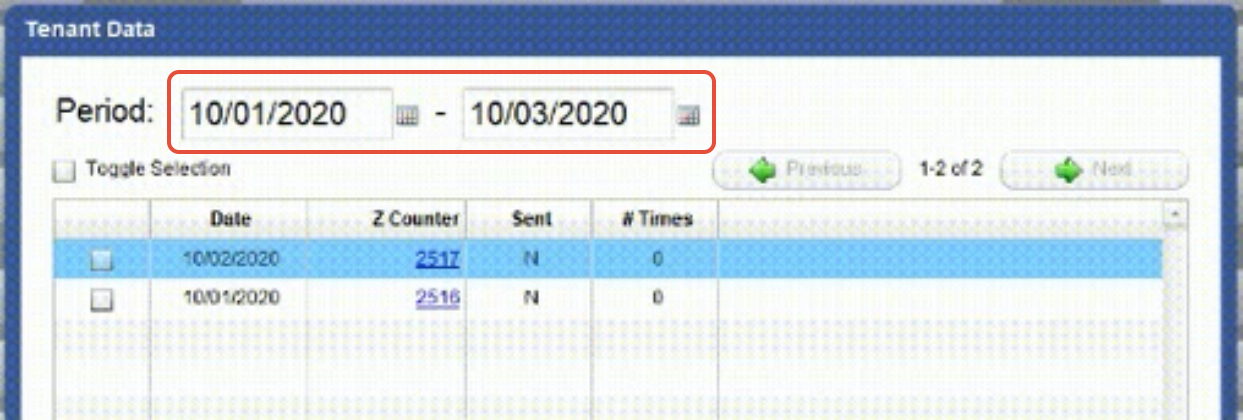
- Step 3: Adjust the Search Filter
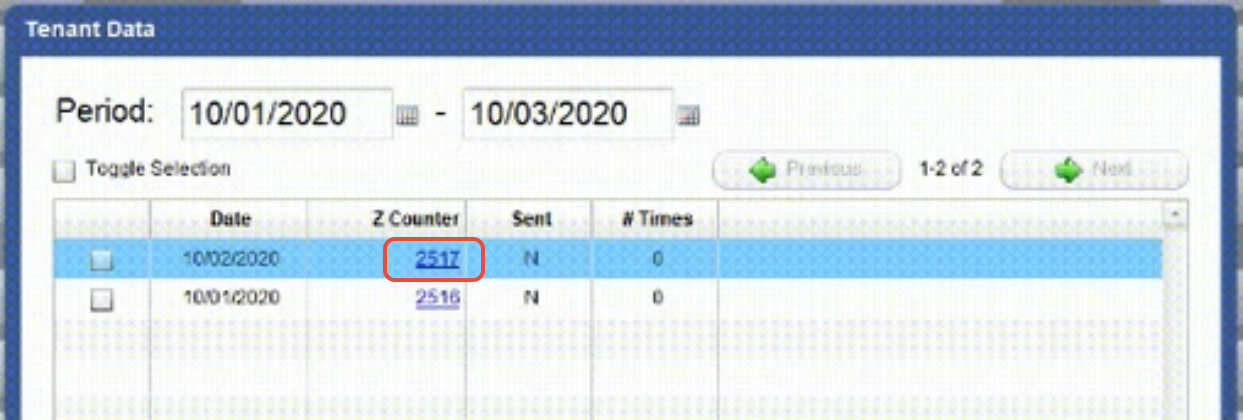
- Step 4: Click on the Data
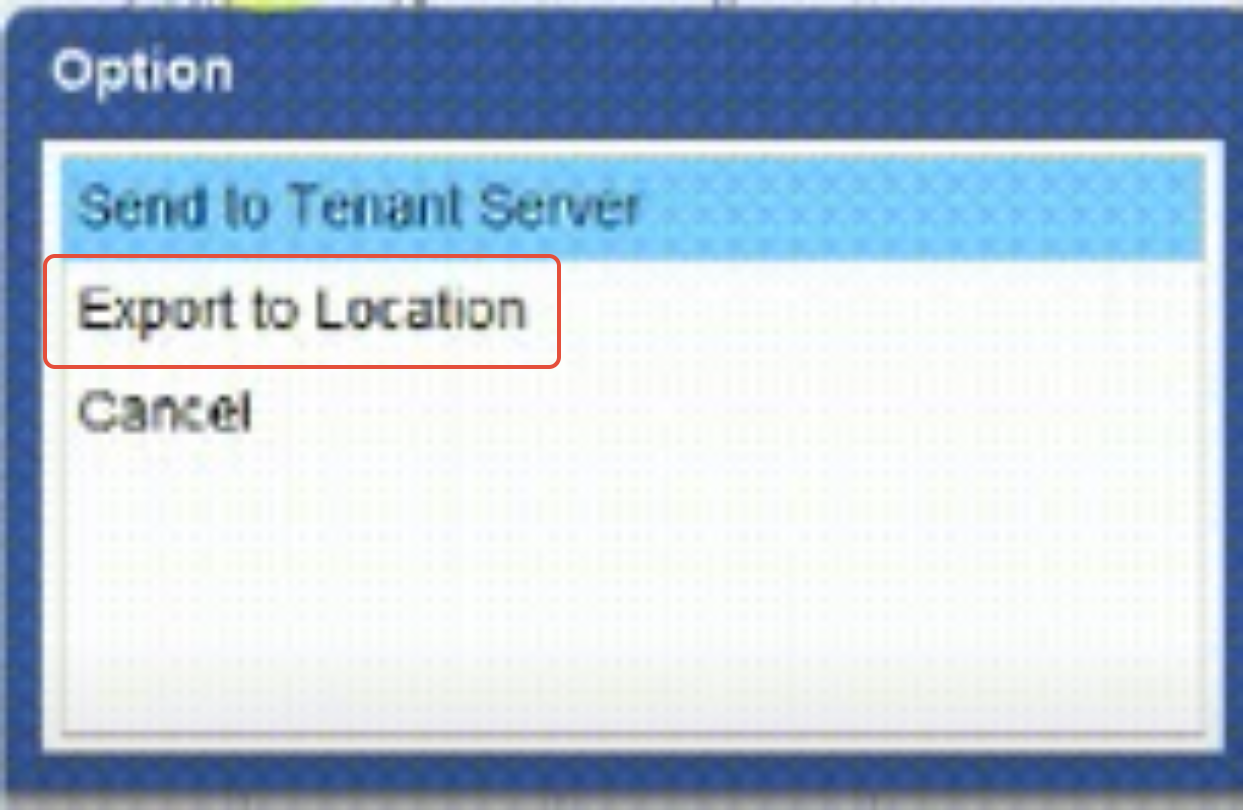
- Step 5: Click on Export to Location
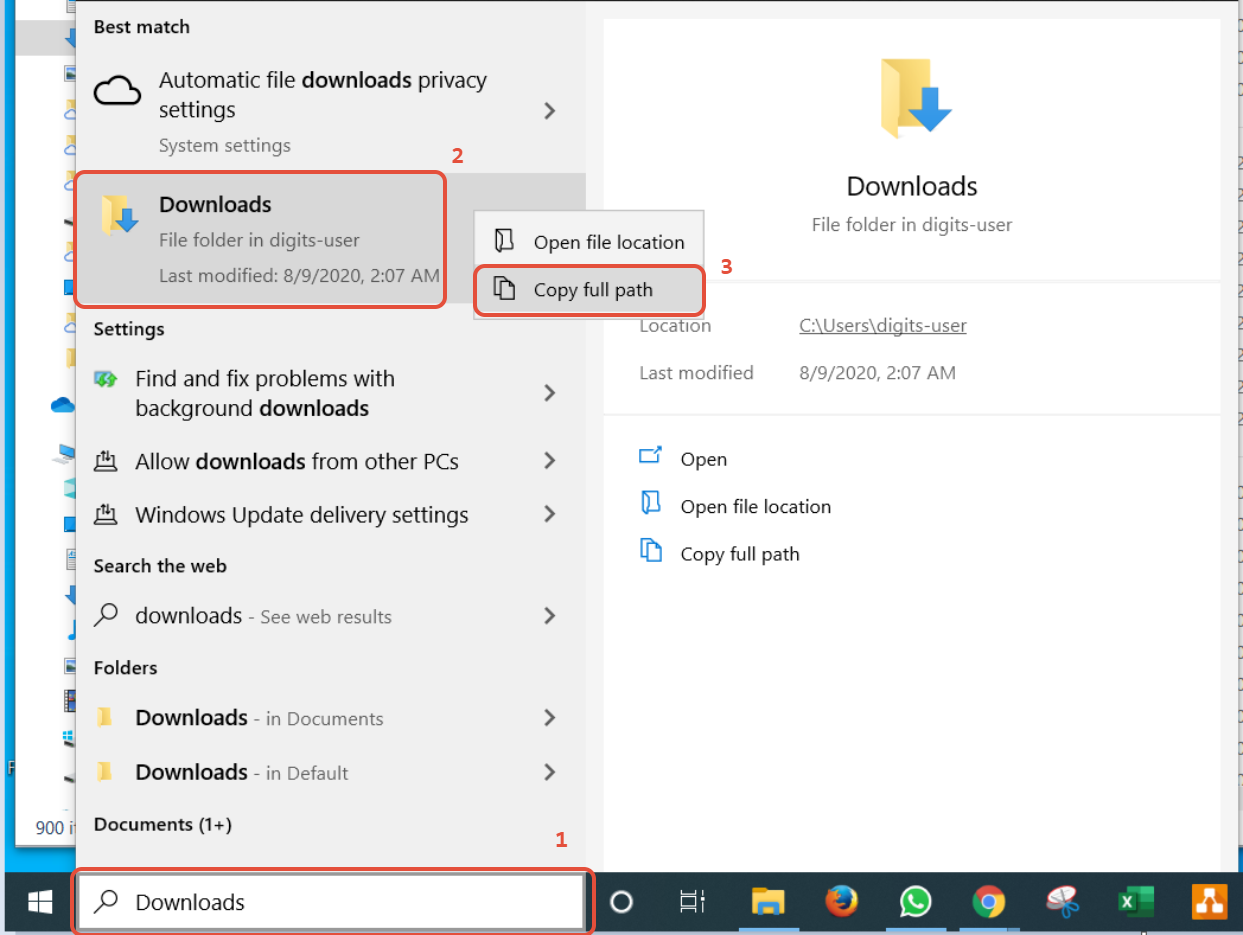
- Step 6: Get your Downloads Folder Path
- Step 7: Paste the file path in the POS
Step 1: Click on Options on your POS Front-end
Step 2: Click on Tenant Data
Step 3: Adjust the Search Filter
Step 4: Click on the Data
Step 5: Click on Export to Location
Step 6: Get your Downloads Folder Path
- Type "Downloads" on your PC's search bar
- Right Click on the "Downloads" folder
- Click on "Copy full path"
Step 7: Paste the file path in the POS
- Return to the POS Front-end and paste the file path on the new pop-up
- You can use the keyboard shortcut (CTRL+V) to paste the path
- The file will appear on your "Downloads" folder after proceeding
If the date you want is not showing, please inform your heads immediately. This means that the mall admin is not able to receive the sales data