
This article will teach you how to create temporary IMFS entries for the DNOS system. Temporary IMFS entries are created for new items that require initial allocation.
This article is only applicable to the MCB and Brand department
Only ACTIVE items will show up when creating DNOS order templates. Completing the whole Temporary IMFS process is a requirement
TABLE OF CONTENTS
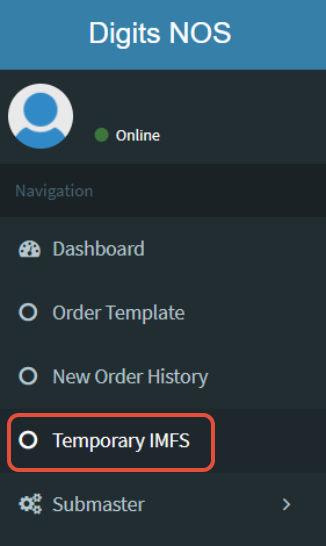
- Step 1: [MCB] Click on Temporary IMFS
- Step 2: [MCB] Click on Add Data
- Step 3: [MCB] Fill-up Information and Click Save
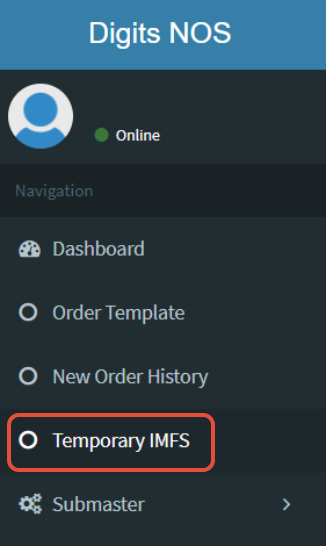
- Step 4: [BRAND] Click on Temporary IMFS
- Step 5: [BRAND] Click on Edit Icon
- Step 6: [BRAND] Upload the photo
- Step 7: [BRAND] Click on Save
Step 1: [MCB] Click on Temporary IMFS
Step 2: [MCB] Click on Add Data

Step 3: [MCB] Fill-up Information and Click Save
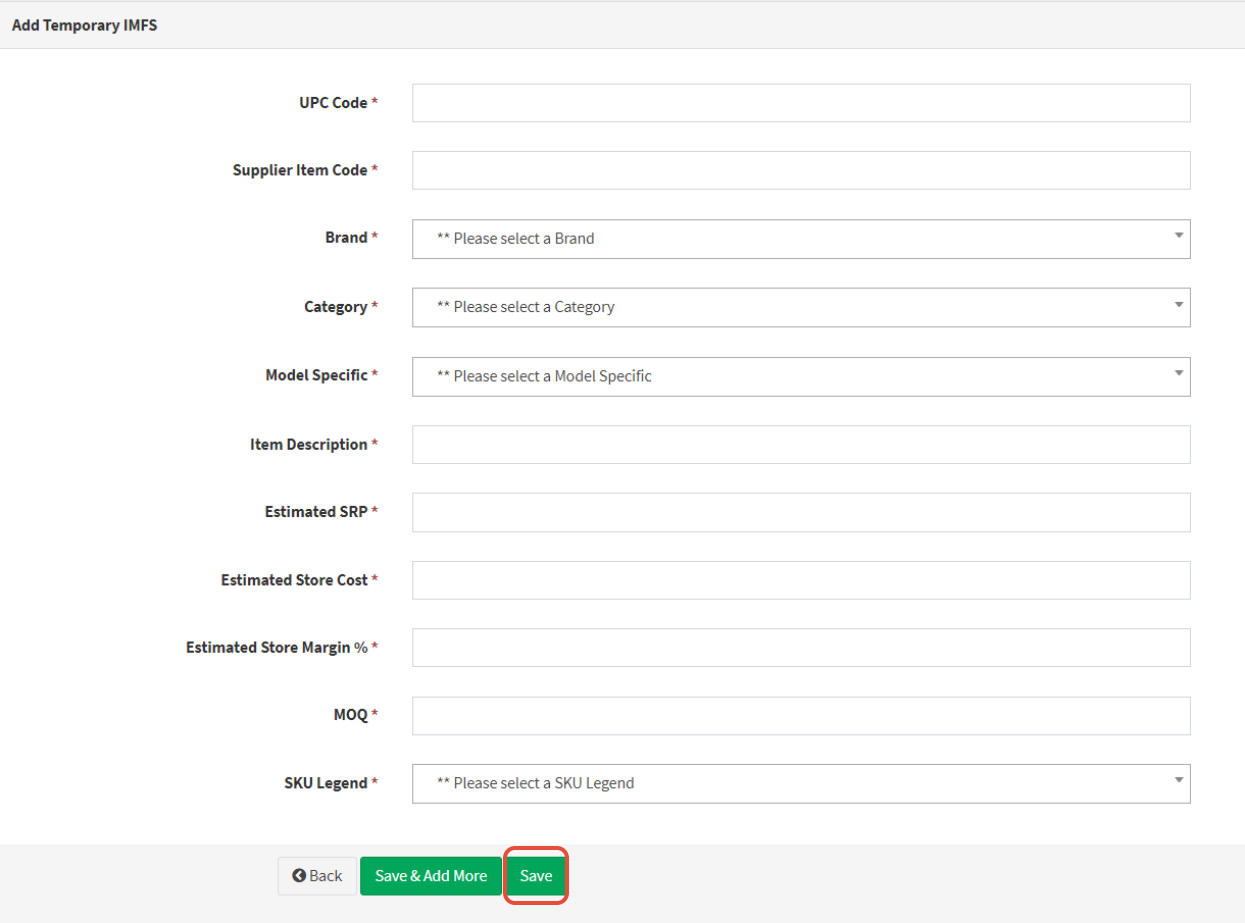
After saving, the status of the item will be PENDING PHOTO

Step 4: [BRAND] Click on Temporary IMFS
Step 5: [BRAND] Click on Edit Icon
Filter and locate all items with the status: PENDING PHOTO

Step 6: [BRAND] Upload the photo
Kindly only upload pictures that are less than 1mb

Step 7: [BRAND] Click on Save

After clicking on save, the item status will change to ACTIVE
