
This article will teach you how to create an order template in DNOS.
This article is only applicable to the MCB department
TABLE OF CONTENTS
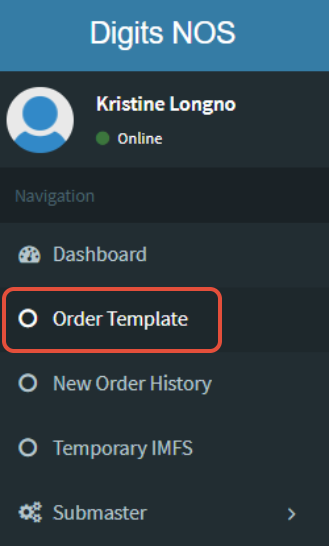
- Step 1: Click on Order Template
- Step 2: Click on Add Data
- Step 3: Click on Download Template
- Step 4: Input the Template Name and Type
- Step 5: Set the Order Quantity Rules per SKU
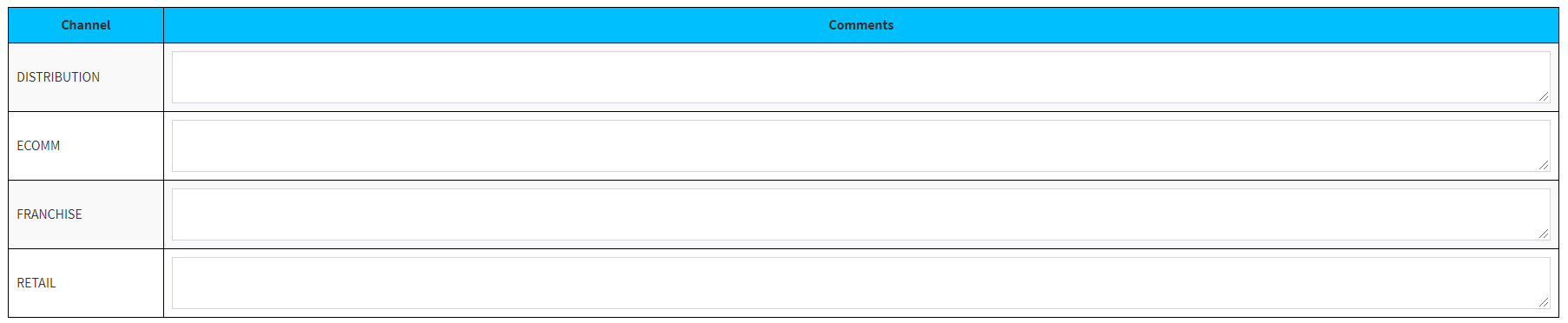
- Step 6: Enter Comments
- Step 7: Click on Save Template
Step 1: Click on Order Template
Step 2: Click on Add Data

Step 3: Click on Download Template
Type / Paste the UPC Code of the item on the search bar
Click on the Pop-up that appears below
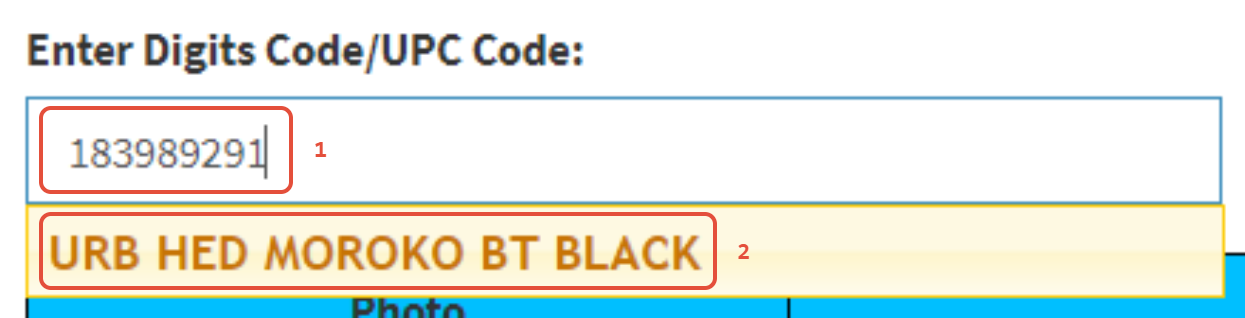
Please make sure that you type / paste the correct code to avoid selecting the wrong item
You may input multiple SKUs per template, however, they must be of the same brand only
Step 4: Input the Template Name and Type
The template name used must be the PO# generated from BEA. The PO# can be requested from SDM
The template type can be one of the following:
1. APPLE
2. NON-APPLE
3. LAUNCH
4. PRE-ORDER

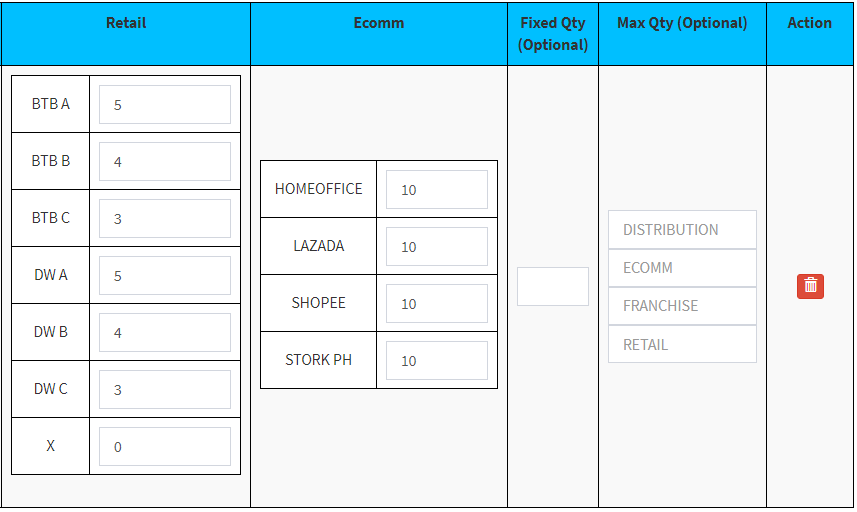
Step 5: Set the Order Quantity Rules per SKU
[REQUIRED] Set the Cost to Fill of Retail and Ecomm
(Stores must follow pre-determined quantity)[OPTIONAL] Set the Fixed Quantity
(All groups' orders cannot exceed the fixed quantity set)[OPTIONAL] Set the Max Quantity per group
(Each groups' orders cannot exceed the max quantity set)
Step 6: Enter Comments
This step is optional, and may be used to provide special instructions to other users
Step 7: Click on Save Template
A success message will appear after saving

Requestors may only see templates that are active
After the ordering period, MCB must manually deactivate the template