
This article will teach you how to create an order in DNOS.
This article is only applicable to Requesting Departments (Distri, Ecomm, Franchise, Retail)
TABLE OF CONTENTS
- Step 1: Check on Open Order Templates
- Step 2: Select your Channel, Template, and Item
- Step 3: Input your Order Quantity
- Step 4: Click on Send Request
Step 1: Check on Open Order Templates
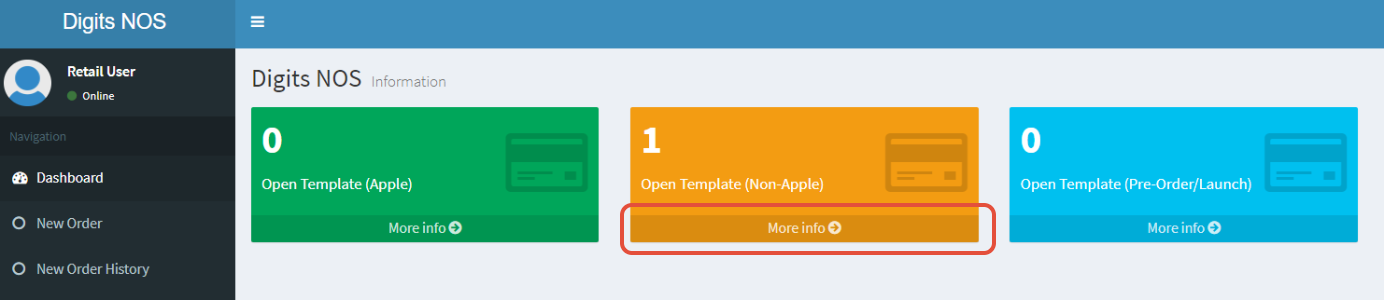
Look for Open Templates with 1 or higher, and click on More info
Step 2: Select your Channel, Template, and Item


The item list will be greyed out if the channel and order template has not yet been selected

Step 3: Input your Order Quantity
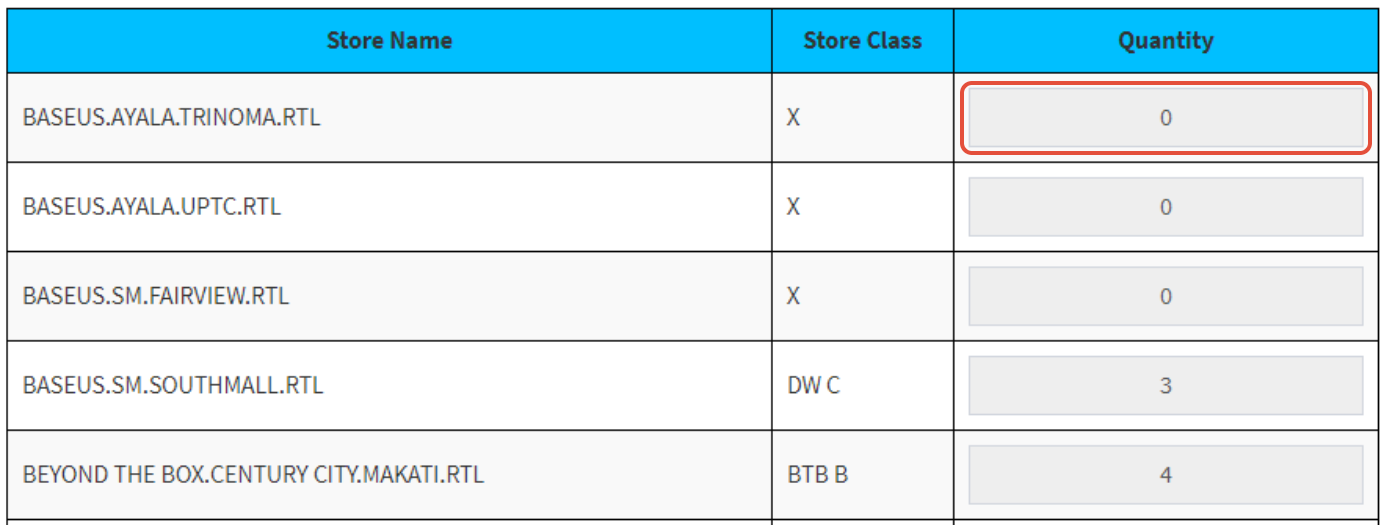
Retail Stores will follow predetermined Cost To Fill, so quantities are auto-filled / greyed out
Step 4: Click on Send Request
If there is more than 1 item on the template, system will automatically redirect you after clicking the button
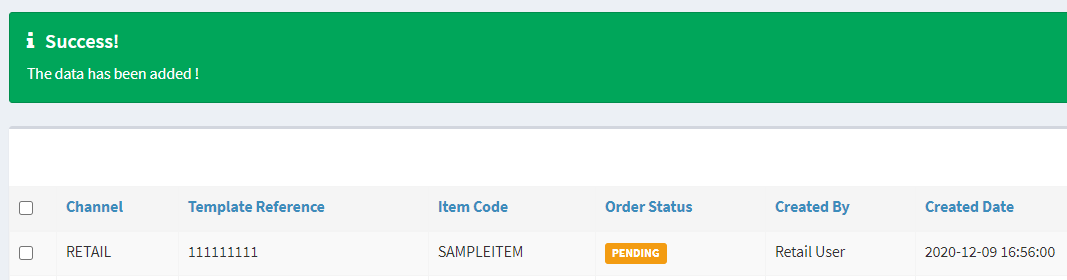
Once all items are completely filled up, a success notification will appear with a PENDING status. This order is for the approval of your head