This article will show you how to install the POS (Back-End) to your computer.
The Web version of the POS will end by December 31, 2020
After installation, you may reopen the POS (Back-end) through Step 6
TABLE OF CONTENTS
- Step 1: Download Adobe Flash Player Projector
- Step 2: Open Adobe Flash Player Projector
- Step 3: Click File -> Open
- Step 4: Enter the URL
- Step 5: Re-open the POS (Back-end)
Step 1: Download Adobe Flash Player Projector
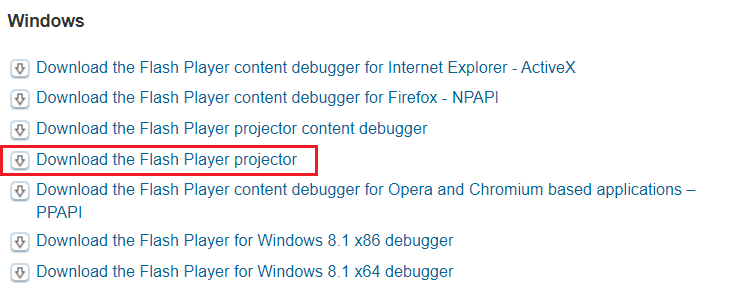
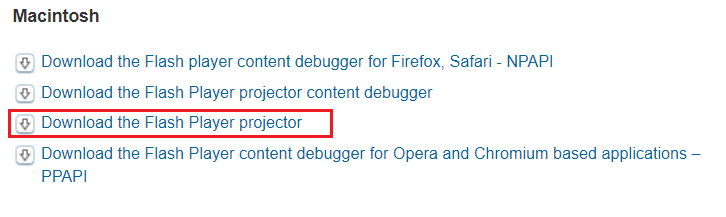
- Click on the download link: Adobe Flash Player Projector
- Select the correct version (Windows / Mac)
- Save the file to your DESKTOP
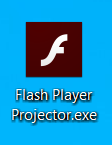
Step 2: Open Adobe Flash Player Projector
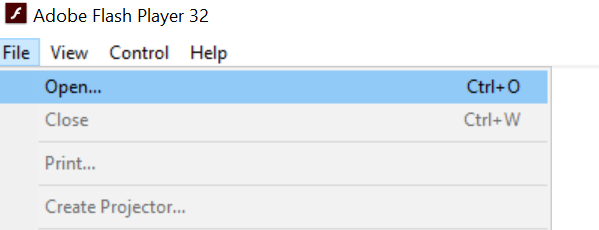
Step 3: Click File -> Open
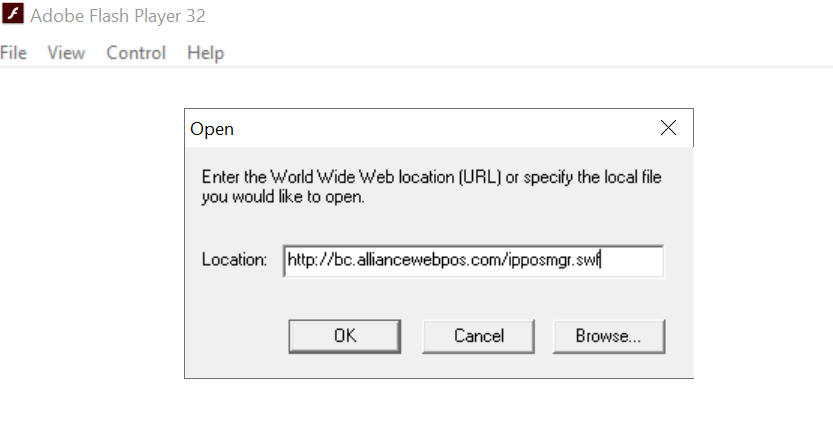
Step 4: Enter the URL
Copy-Paste the Location: http://bc.alliancewebpos.com/ipposmgr.swf
Click OK
If you are successful, you will be redirected to the login screen
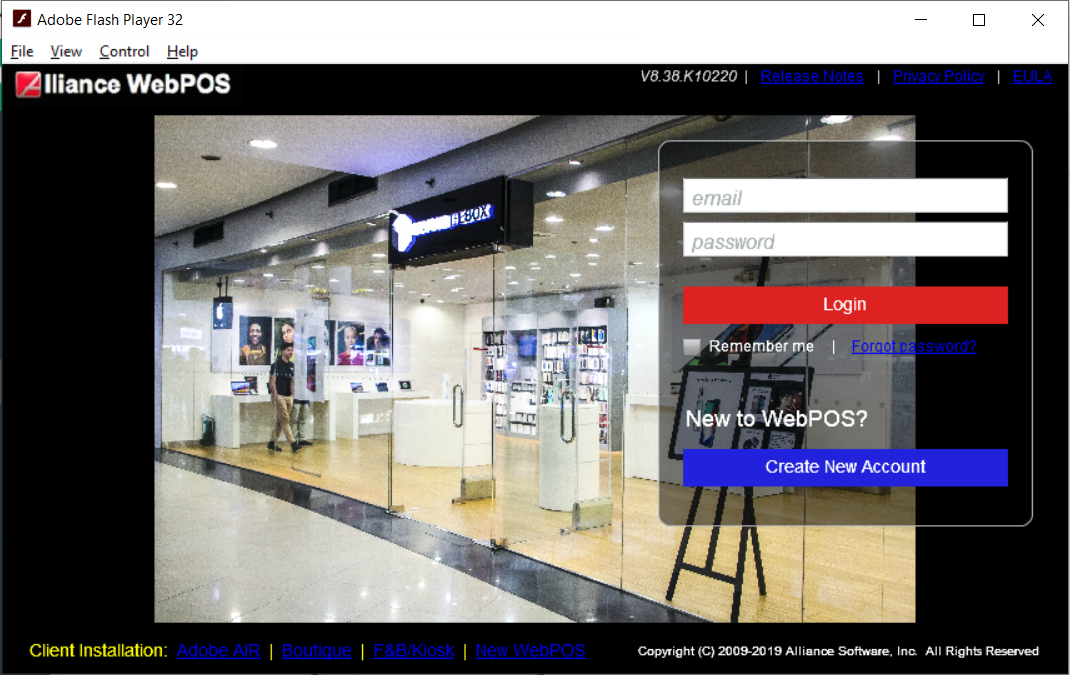
To exit full screen mode, click ESC on your keyboard
Step 5: Re-open the POS (Back-end)
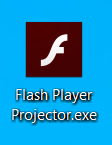
- Click on Adobe Flash Player Projector on your Desktop
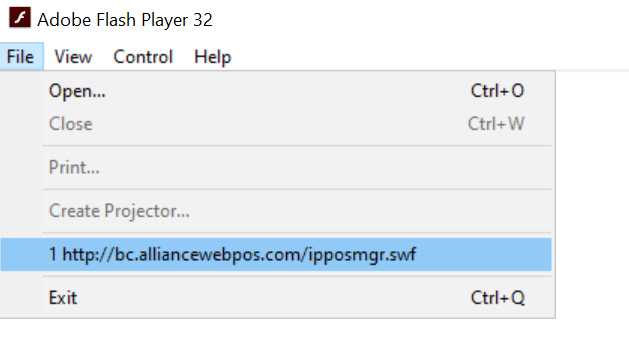
- Click on File
- Click on http://bc.alliancewebpos.com/ipposmgr.swf