
This article will show you how to create Store to RMA transactions.
This article is for store personnel and store heads only.
The Store to RMA transaction will only be used for store-owned items.
TABLE OF CONTENTS
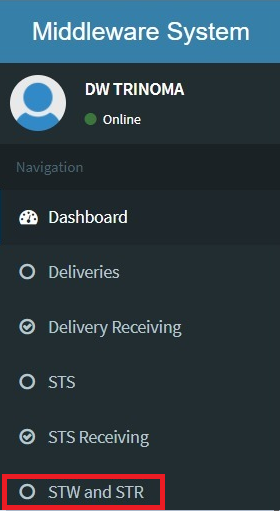
- Step 1: Click on STW and STR
- Step 2: Click on Create ST RMA
- Step 3: Select From and To Locations
- Step 4: Select Reason
- Step 5: Input Memo (Optional)
- Step 6: Scan Item
- Step 7: Enter Additional Items (Optional)
- Step 8: Click on Create Button
- Step 9: Click on Print Button
- Step 10: Turnover items to RMA or Service Center
Step 1: Click on STW and STR
Step 2: Click on Create ST RMA

Step 3: Select From and To Locations

Step 4: Select Reason

Step 5: Input Memo (Optional)

Step 6: Scan Item

If the item is serialized, a pop-up window will appear. Scan the serial code here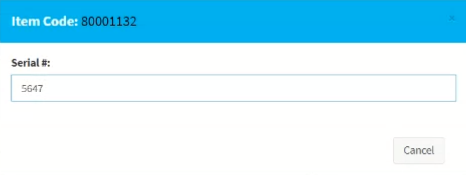
Step 7: Enter Additional Items (Optional)
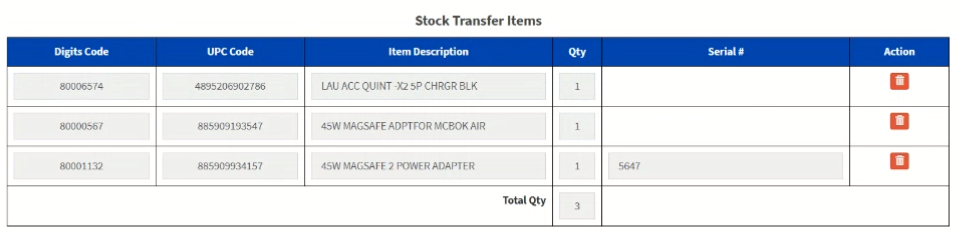
Step 8: Click on Create Button

A success message will appear if there are no problems with your inventory.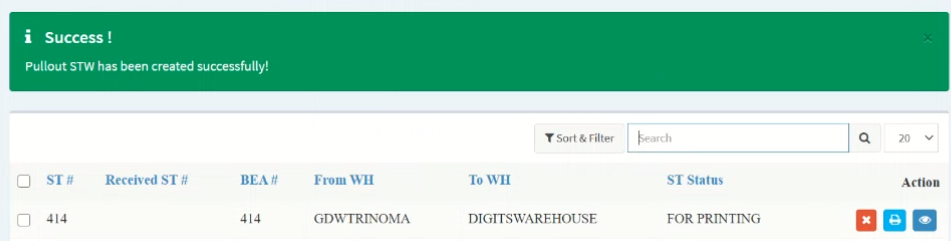
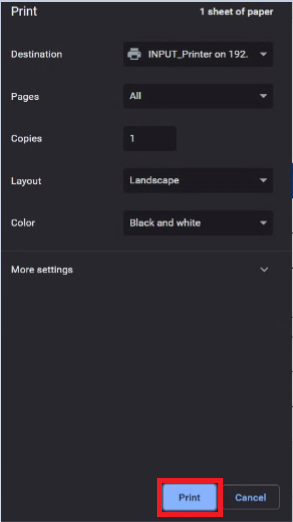
Step 9: Click on Print Button

Step 10: Turnover items to RMA or Service Center
No Stock Transfer Form, No Pull-out.