
This article will teach you how to process orders in Ginee.
This article is applicable to the SDM department
TABLE OF CONTENTS
- Step 1: Click on Pending Order
- Step 2: Click on Own Warehouse
- Step 3: Export Pending Orders
- Step 4: Input Serial and Notes
- Step 5: Print Invoice
- Step 6: Arrange Shipment
- Step 7: Print Label
Step 1: Click on Pending Order
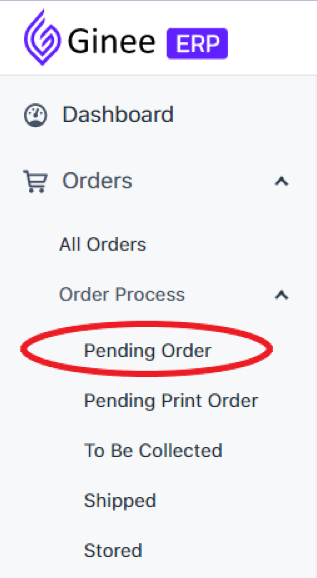
Click on Orders -> Order Process to find Pending Order
Step 2: Click on Own Warehouse

You may filter transactions in order to group them together.
Step 3: Export Pending Orders

Download the transactions you want to process and place in shared Google Sheet with ECOM WHS for picking
Step 4: Input Serial and Notes
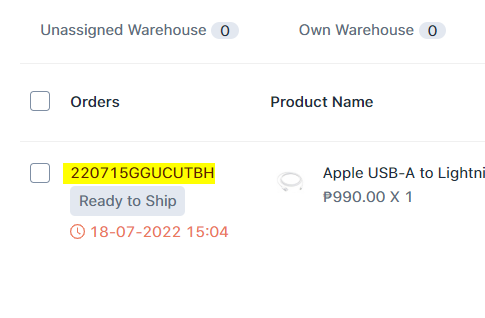
Click on Notes to input serial number / buyer requests
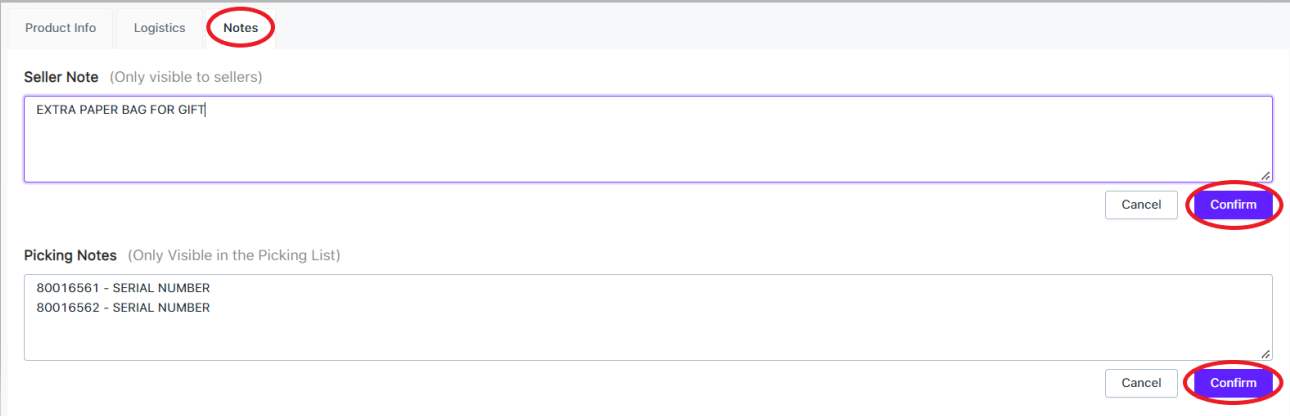
Use Seller Note for Buyer Requests like additional paper bags, receivers, etc...

Use Picking Notes to indicate Digits Code and Serial Number picked
Step 5: Print Invoice
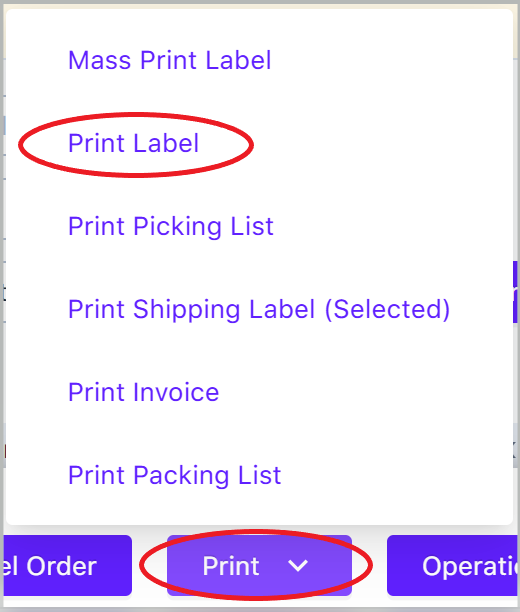
You may mass select orders to mass print using the checkboxes
Step 6: Arrange Shipment

You may mass select orders to mass arrange shipment using the checkboxes
Step 7: Print Label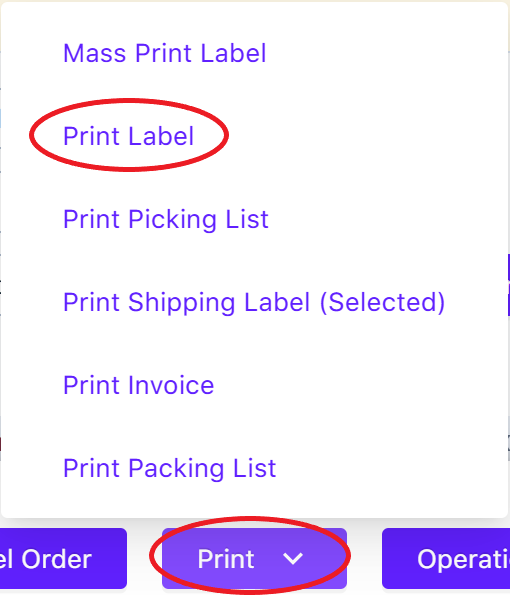
You may mass select orders to mass print label using the checkboxes